

What Actually Happens When a Lead Messages You on WhatsApp , Inside Salesforce
Someone sees your ad, scans a QR code at your event, or clicks the WhatsApp button on your website. They send you a message. Then what?
If you're not running a purpose-built Salesforce WhatsApp integration, the honest answer is: it depends on who happens to be watching the phone. Maybe it gets picked up. Maybe it doesn't. Maybe someone screenshots it and pastes it into Salesforce. Maybe the lead never makes it into your CRM at all.
This uncertainty costs deals. In markets where WhatsApp is the primary contact channel , the Middle East, Latin America, South and Southeast Asia, much of Europe , a lead that goes unanswered for an hour is often a lead that goes to a competitor.
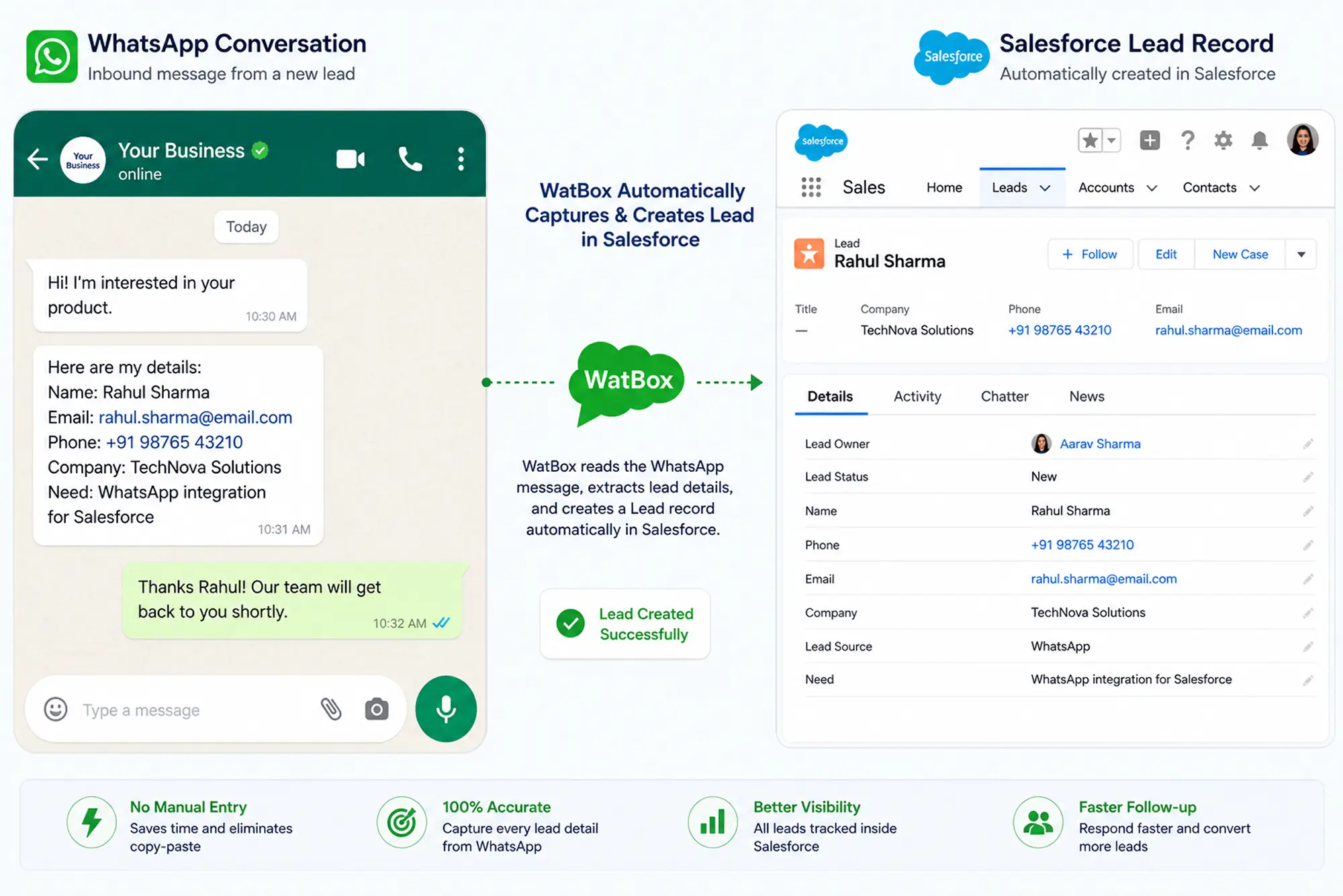
WatBox eliminates that uncertainty. Here's the exact data flow, step by step, from the moment a prospect sends their first WhatsApp message to the moment your rep is looking at a fully-formed Salesforce record with the conversation history already attached.
Step 1: The Inbound Message Hits Your WhatsApp Business Number
It doesn't matter how the lead found you , website widget, QR code, Facebook ad with a WhatsApp click-to-chat, or a direct message. The moment they initiate contact on WhatsApp, WatBox receives the message via the WhatsApp Business API and starts the workflow.
At this point, WatBox checks one thing: does this phone number already exist as a record in your Salesforce org?
Step 2: New Number → New Salesforce Record Created Automatically
If the phone number is new , not associated with any existing Lead, Contact, or Person Account , WatBox creates a new record automatically.
You configure which object gets created based on your sales process. Most B2C teams create a Person Account or Contact. B2B teams typically create a Lead. If you're running a support-first model, WatBox can be configured to create a Case directly.
The new record is created with the customer's phone number populated immediately. The first message they sent becomes the starting point of the conversation history attached to that record.
No manual entry. No delay. By the time a rep opens Salesforce, the lead is already there.
Step 3: Existing Number → Message Added to the Right Record
If the phone number already exists in Salesforce , as a Lead, Contact, Account, or any other object , WatBox appends the new message directly to that existing record.
This is where the CRM value becomes immediately obvious. Your rep can see every previous WhatsApp exchange with this person, right alongside their email history, call logs, and deal history. They have full context before they type a single word in reply.
No more asking "have we spoken to this person before?" No more customers having to re-explain their situation to a rep who has no background.
→ See how WatBox maps inbound WhatsApp messages to Salesforce objects →
Step 4: Assignment Rules Route the Conversation to the Right Rep
Once the record is created or updated, your existing Salesforce assignment rules take over. WatBox works with Salesforce Omni-Channel natively , so if you're using Omni-Channel for case routing, WhatsApp conversations slot into the same queue logic as emails and web cases.
You can configure different routing rules based on:
- Which WhatsApp number the message came in on (e.g., a dedicated sales number vs. a support number)
- Which Salesforce object was created or updated
- Geographic or language-based routing if you're running multiple numbers for different regions
The rep who gets assigned to the conversation sees it appear in their Salesforce queue exactly like any other channel. They click in, and the full conversation history , including the very first message , is right there.
Step 5: The Rep Replies From Inside Salesforce
The rep never needs to open WhatsApp. They never need a phone or a browser tab. They reply directly from the Salesforce record , the same screen where they see the lead's details, the account history, and any open opportunities or cases.
The reply goes back to the customer's WhatsApp instantly. From the customer's perspective, they're having a seamless WhatsApp conversation. From the rep's perspective, it's just another Salesforce interaction , logged, tracked, and searchable.
For teams using the Salesforce Service Cloud, WatBox works within the Service Console. Reps handle WhatsApp conversations the same way they handle email cases, with all the same SLA timers, escalation rules, and supervisor visibility.
Step 6: Automation Kicks In From the First Message
Here's where things get powerful for sales and marketing teams. Because WatBox plugs into Salesforce natively, any Flow or process you've already built can now be triggered by a WhatsApp conversation.
Practical examples WatBox customers have running in production:
- Instant welcome message. The moment a new Lead is created from a WhatsApp inbound, a Salesforce Flow triggers a personalized WhatsApp template message , acknowledging the enquiry, setting expectations, and optionally asking a qualifying question.
- Lead scoring update. A WhatsApp inbound from an existing prospect updates their lead score in Salesforce, potentially triggering a high-priority alert to the assigned rep.
- Appointment booking prompt. After the initial exchange, an automated WhatsApp message offers the lead a link to book a time directly , eliminating the back-and-forth that kills conversion rates.
- Follow-up sequence. If a rep doesn't respond within a defined SLA, a Salesforce Flow escalates the record or sends an automated holding message to the customer.
All of this runs through standard Salesforce Flows , no custom code, no third-party automation tool.
What Happens When Someone Who Already Messaged You Comes Back?
This is a question every sales ops team asks. The answer with WatBox is simple: the same record, updated.
WatBox tracks conversation continuity. If a customer messages you today, and then messages again in three weeks, both conversations are attached to the same Salesforce record. The rep can see the full history , when they first reached out, what they asked, what the rep replied, whether a deal was discussed.
This is the difference between a CRM that's a filing cabinet and one that's an actual customer intelligence platform. The WhatsApp channel, historically invisible, becomes the richest source of raw customer intent data you have.
What About Customers Who Opt Out?
WatBox handles opt-outs automatically. If a customer replies with a stop message or triggers an opt-out through Meta's mechanisms, WatBox updates the relevant Salesforce record immediately. An opt-out flag is set, and that contact is automatically excluded from any future outbound WhatsApp automations or broadcast campaigns.
You don't need to manually manage this. Your compliance posture is maintained in real time, directly inside Salesforce.
The Full Picture in One View
What used to require a rep to switch between a phone, WhatsApp Web, and Salesforce , manually copying names, numbers, and message content , now happens automatically, in sequence, inside a single platform.
A lead messages you on WhatsApp. A Salesforce record is created. The conversation is logged. Assignment rules route it to the right rep. Automation fires a response. The rep picks it up in their Salesforce queue with full context. Every subsequent message updates the record.
For Salesforce teams operating in WhatsApp-heavy markets, this isn't a nice-to-have. It's the infrastructure that makes your CRM investment worthwhile.
Start Your Free Trial
WatBox gets this data flow live in your Salesforce org in days , not months, and without a development team. Try it free for 15 days and see exactly how your inbound WhatsApp leads flow into Salesforce from the first message.
👉 Start your 15-day free trial , no credit card required →
👉 Book a live demo with the WatBox team →
