

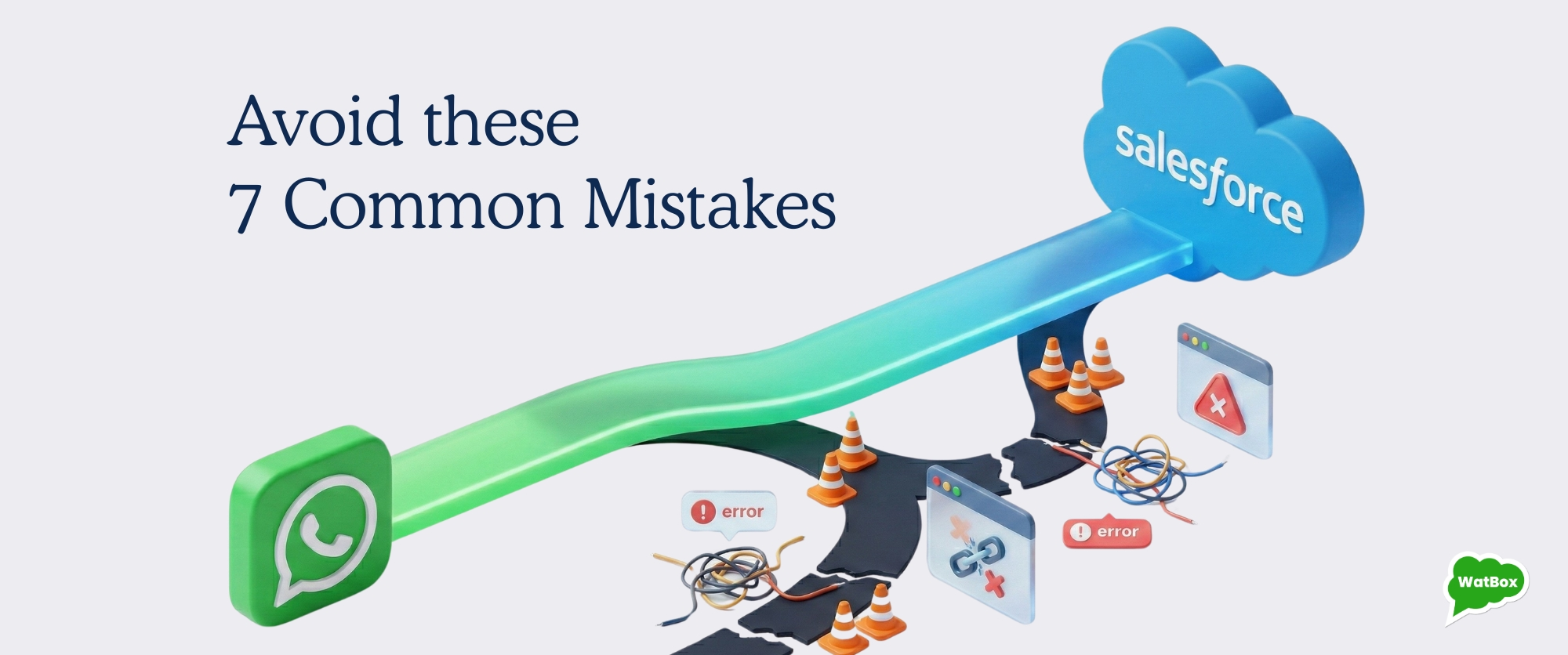

Avoid These 7 Common Mistakes When You Integrate WhatsApp with Salesforce for the First Time
Avoiding the most common mistakes with WhatsApp integration with Salesforce comes down to one thing: designing for real conversations, not just "connecting two tools." In this post, we'll walk through seven pitfalls we see teams hit when they first integrate WhatsApp with Salesforce, and how to avoid them so you get a scalable, compliant, admin-friendly setup.
Why WhatsApp integration with Salesforce goes wrong
When teams ask us about WhatsApp integration with Salesforce, they rarely want a feature checklist—they want a reliable way to bring WhatsApp into their existing Salesforce workflows without breaking reporting, routing, or compliance. We've seen that most issues aren't "technical bugs" but early design decisions that don't age well once volume and use cases grow.
If you're planning to integrate WhatsApp with Salesforce for the first time, use these mistakes as a checklist of what not to do and what to set up from day one.
Mistake 1 - Treating WhatsApp as a standalone channel
The first mistake is connecting WhatsApp like a sidecar tool instead of embedding it into your CRM processes. If messages live in a separate inbox or partial integration, agents lose context and leaders lose visibility into performance.
What to do instead:
- Make sure every WhatsApp conversation is tied to a Lead, Contact, Case, or Opportunity in Salesforce, not just stored as generic messages.
- Use a native messaging workspace (for example, inside the Service Console) so agents see WhatsApp alongside history, activities, and related records.
- Design your flows so WhatsApp is just "another channel" in your engagement strategy, not a separate support tool.
Example: A service team handling warranties routes WhatsApp inquiries as Cases with the same fields and SLAs as email, so managers can compare first response and resolution times across channels in a single report.
Mistake 2 - Ignoring Meta and Salesforce prerequisites
We regularly see projects stall because the basics—Meta setup and Salesforce channel configuration—weren't planned up front. Teams start with message flows before they have a verified WhatsApp Business Account or the right Salesforce edition and licenses.
What to do instead:
- Confirm you have or can create a WhatsApp Business Account (WABA) in Meta Business Manager. This is required before you send any production traffic.
- In Salesforce, ensure your org is properly equipped for a native messaging integration.
- Align with IT and security early on how you'll manage access tokens, webhooks, and IP allowlists for the WhatsApp Business API or any middleware.
Example: Before even designing templates, a sales team registers its WABA, completes business verification, and confirms the target Salesforce sandbox has Messaging settings available so configuration and testing can proceed smoothly.
Mistake 3 - Skipping data model and field mapping
Another common issue is dropping WhatsApp data into Salesforce without a clear data model. If you don't define where conversations, events, opt-ins, and metrics live, reporting and automation quickly become inconsistent.
What to do instead:
- Decide which standard objects (Lead, Contact, Case, Opportunity) and custom objects you will use for WhatsApp messages and sessions.
- Map key fields from WhatsApp (phone number, template name, direction, timestamps, status) into structured fields, not just long text blobs.
- Standardize one phone-number format (for example, E.164) and enforce it with validation rules or clean-up flows.
Example: A support org stores each WhatsApp conversation as a related record under Case with fields for last template used and last user reply time, enabling queue-based routing and SLA reporting.
Mistake 4 - Underestimating compliance and template rules
WhatsApp has strict policies on who you can message, when, and with what templates ; Salesforce adds its own limits and considerations on messaging. When teams ignore opt-in, consent tracking, or 24-hour session rules, messages can get blocked or accounts restricted.
What to do instead:
- Capture explicit opt-in for WhatsApp and store it on the relevant Salesforce record, including timestamp and source.
- Use approved message templates for outbound messages outside active 24-hour windows, and version them carefully.
- Respect Salesforce messaging limits (such as session and throughput limits) and avoid designs that assume infinite concurrency.
Example: A service team configures automation so only Contacts with a WhatsApp Opt-In field set to true can be added to outbound notification journeys, and any opt-out received over WhatsApp updates that field immediately.
Mistake 5 - Forgetting routing and agent experience
You can have a technically correct WhatsApp integration with Salesforce that still fails because agents struggle to use it. Typical symptoms: conversations aren't routed correctly, escalation is clumsy, or agents have to jump between tabs and tools.
What to do instead:
- Use standard Salesforce routing (queues, skills, Omni-Channel) for WhatsApp, just as you do for chat or email.
- Define clear rules for ownership changes and escalations so sessions don't get stuck with the wrong agent.
- Give agents a unified console view with WhatsApp threads, customer data, and macros or quick replies in one place.
Example: A contact center routes WhatsApp conversations into the same Service Console where agents already handle chat and email, so they use a single queue and presence model rather than juggling separate tools.
Mistake 6 - Not planning for automation and journeys
Many first-time implementations stop at "send and receive" and bolt on automation later. That usually leads to fragmented flows and duplicated logic between WhatsApp and other channels.
What to do instead:
- Decide upfront which steps should be manual (for example, complex support) and which should be automated (for example, notifications, reminders).
- Use Salesforce automation (Flows or journey tools for outbound campaigns) to trigger WhatsApp messages from CRM events rather than custom code for everything.
- Keep your entry and exit criteria for WhatsApp journeys consistent with email and SMS journeys where it makes sense.
Example: A sales team uses an automated flow to send a WhatsApp reminder when a meeting is scheduled or rescheduled in Salesforce, while keeping follow-up negotiation conversations fully human-driven.
Mistake 7 - No monitoring, debugging, or scalability plan
The last big mistake we see: once teams integrate WhatsApp with Salesforce and it "works," they stop there. Without monitoring message delivery, template performance, failure reasons, and agent workload, issues only surface when customers complain.
What to do instead:
- Track basic health metrics: delivery rates, read rates, reply rates, and conversation volume by queue or team.
- Log and surface error messages from the WhatsApp Business API or connector so admins can quickly troubleshoot failures.
- Review configuration after each major Salesforce or Meta change to keep up with new limits and capabilities.
Example: A revenue team reviews a dashboard weekly to see which WhatsApp templates drive replies, which error codes are spiking, and whether agents are approaching session limits during peak campaigns.
How we designed WatBox for WhatsApp integration with Salesforce
When we built WatBox for WhatsApp integration with Salesforce, we anchored it around the same principles we've outlined above: clean data, admin control, and a simple agent experience.
Practical scenarios you can implement on day one
Here are a few concrete scenarios we often help teams deploy when they integrate WhatsApp with Salesforce:
- Lead qualification: New web leads with a valid mobile number receive a WhatsApp acknowledgment, and reps continue the conversation directly from the Lead record.
- Case updates: When a Case status changes (for example, "Awaiting Customer"), Salesforce triggers a WhatsApp update with a clear call to action, all tracked against the Case.
- Appointment reminders: Events or custom scheduling objects send automatic WhatsApp reminders 24 hours before meetings.
- Order or service notifications: Changes on Opportunity, Order, or custom service objects trigger transactional WhatsApp messages.
Conclusion
If you're planning WhatsApp integration with Salesforce, the safest path is to design for data, compliance, and agent workflows before you write a single line of code or install a connector.
If you'd like to see how this would work for your team, you can Schedule a call now.

Level up WhatsApp Integration with Salesforce
Start with a 15 day trial for you to taste the CRM + WhatsApp interactions!