

Salesforce WhatsApp Integration: The Complete Guide
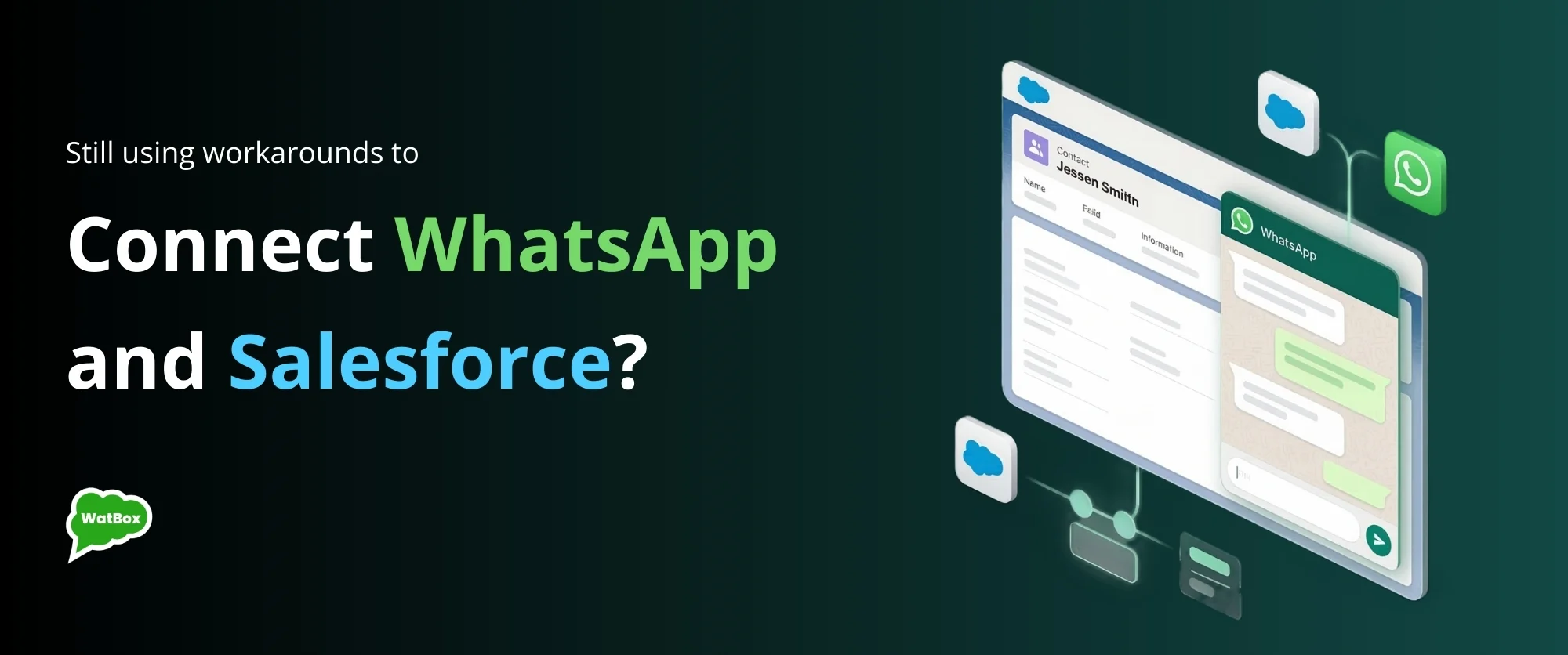
Salesforce integrates with WhatsApp through the WhatsApp Business Platform (API), and there are exactly three ways to do it: Salesforce’s native Unified WhatsApp channel, a managed AppExchange app such as WatBox, or a custom build on Meta’s Cloud API. All three let your team send and receive WhatsApp messages against Salesforce records; they differ in cost, setup effort, required Salesforce editions, and how much you can customize.
This guide explains all three routes, the requirements they share, a step-by-step setup, what each one costs, and the compliance rules that apply no matter which you choose — so you can pick the right path for your org before you commit to any of them.
What are the 3 ways to integrate WhatsApp with Salesforce?
Every legitimate Salesforce WhatsApp integration rides on the same rails underneath: a Meta-verified business, a WhatsApp Business Account (WABA), and the WhatsApp Business Platform. The choice is about what sits between that platform and your CRM:
| Native Unified WhatsApp | AppExchange app (e.g., WatBox) | Custom API build | |
|---|---|---|---|
| Best for | Service-centric teams already on the right editions | Sales + service + marketing teams that want fast, no-code rollout | Complex, high-control workflows with dev resources |
| Setup effort | Admin setup; feature availability depends on cloud and edition | Managed package install + Meta embedded signup; typically live in under a day | Weeks of development: Apex/middleware, webhooks, retries, monitoring |
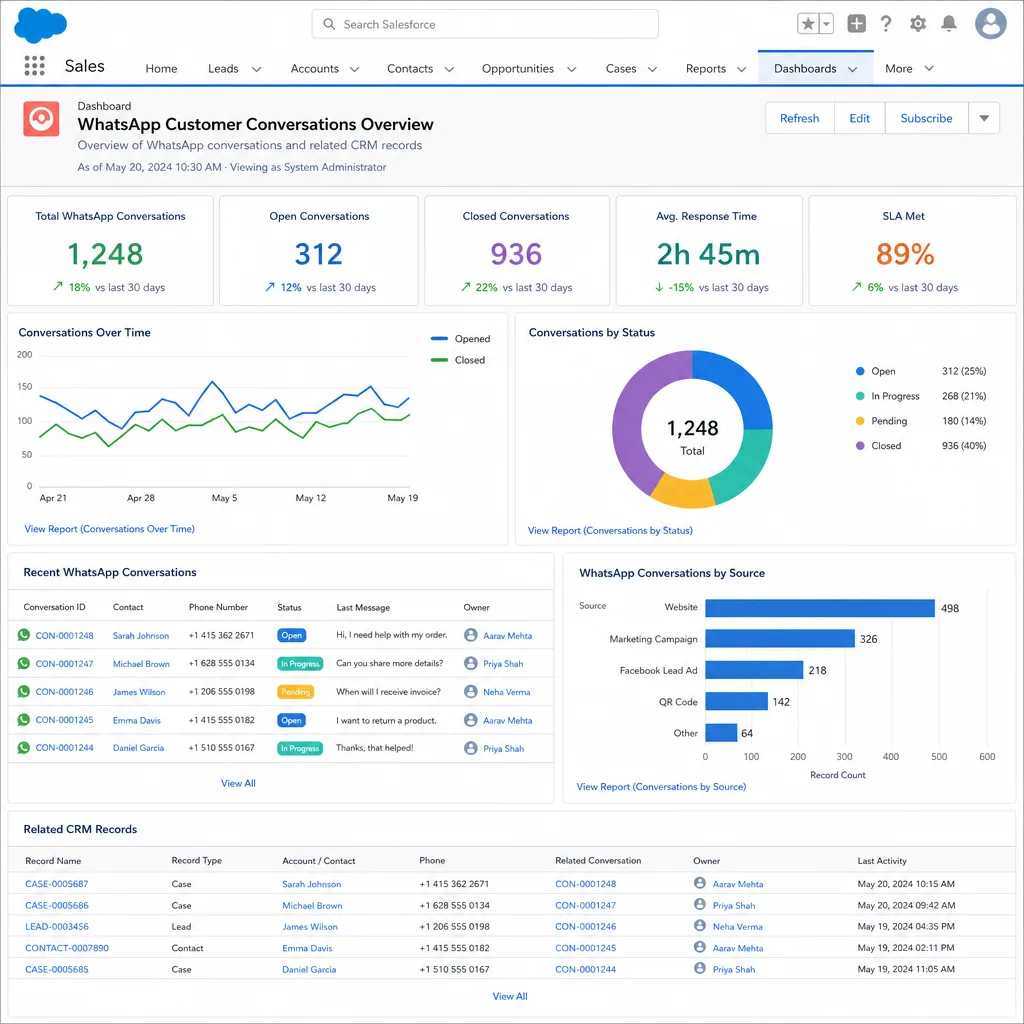
| Where chats live | Salesforce messaging console with Omni-Channel routing | Directly on Leads, Contacts, Accounts, Cases, and custom objects | Wherever you build them to live |
| Salesforce requirements | Specific editions plus messaging add-on licenses | Works with standard editions; no add-on licenses | API access; architecture is up to you |
| Extras beyond WhatsApp | Part of Salesforce Messaging channels | Often bundles SMS, telephony/CTI, and AI in one package | Anything — you build it |
| Typical cost | Edition/add-on licensing + Meta conversation fees | Per-user subscription + Meta conversation fees | Development and maintenance cost + Meta conversation fees |
A fair rule of thumb: if you only need service conversations and already own the right editions, evaluate native first. If you want sales, service, and marketing on WhatsApp quickly — with history on the record and no new licenses — an AppExchange app is usually the fastest path. If your data model or routing logic is genuinely unusual, budget for a custom build and the ongoing engineering it demands.
What do you need before you start?
- A Meta-verified business. Business verification in Meta Business Manager is the gate to everything; it typically takes a few days.
- A WhatsApp Business Account (WABA). Created during Meta’s embedded signup or beforehand in Business Manager.
- A dedicated phone number. A number can be registered to only one WhatsApp product at a time: numbers on the consumer or small-business app must be migrated before the API can use them. Meta’s newer WhatsApp coexistence options are relaxing this for some setups, but a dedicated number is still the cleanest start.
- Salesforce admin access to install a package or enable a channel, plus a decision on which objects own conversations.
- Message templates for business-initiated conversations: outbound messages outside the 24-hour customer-service window require Meta-approved templates.
How to set up Salesforce WhatsApp integration, step by step
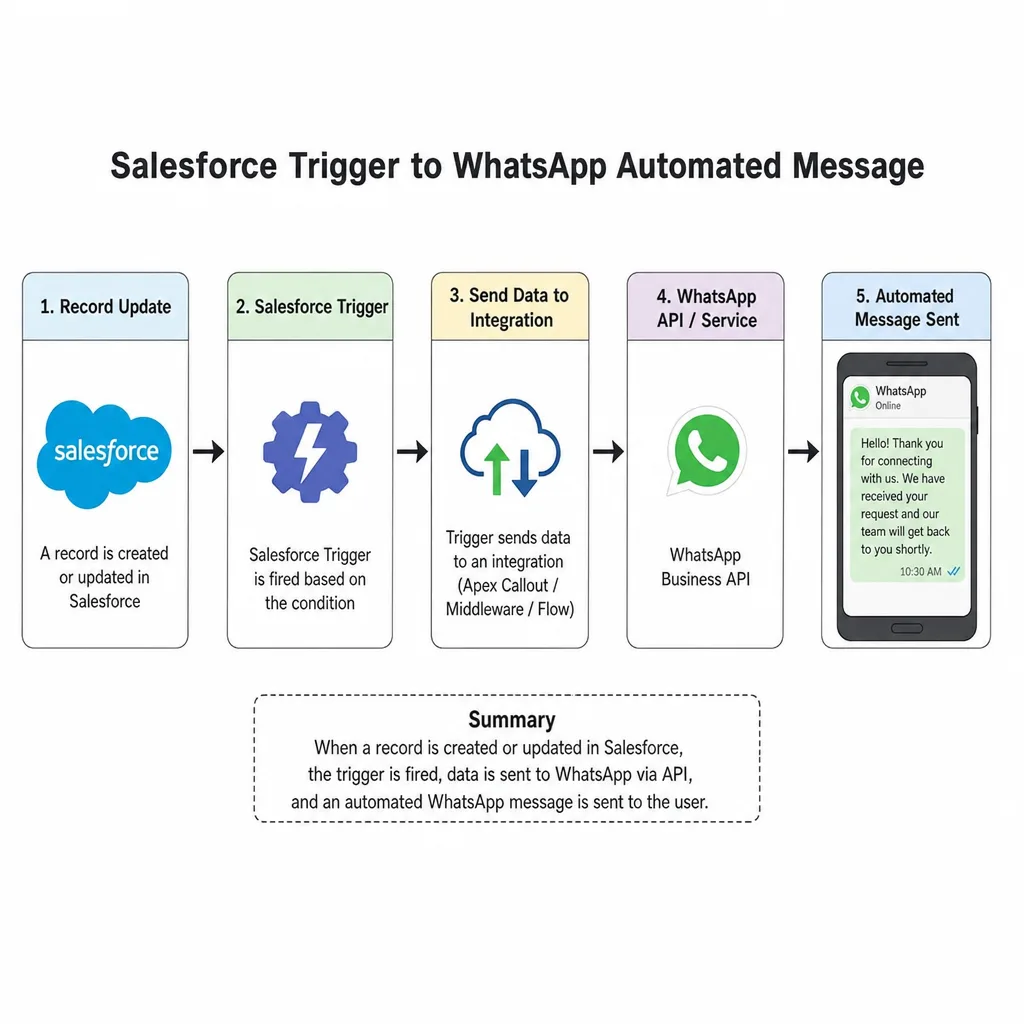
- Prepare the WhatsApp Business foundation. Verify your business with Meta, create or claim your WABA, and dedicate the phone number customers will message.
- Choose the integration path. Use the comparison above: native channel, AppExchange app, or custom API — decided by your clouds, licenses, timeline, and customization needs.
- Connect the WABA to Salesforce. For an AppExchange app: install the managed package and run Meta’s embedded signup from inside Salesforce — a guided OAuth-style flow that links your number in minutes. For native: enable the Enhanced/Unified WhatsApp channel in Messaging Setup and connect the same way.
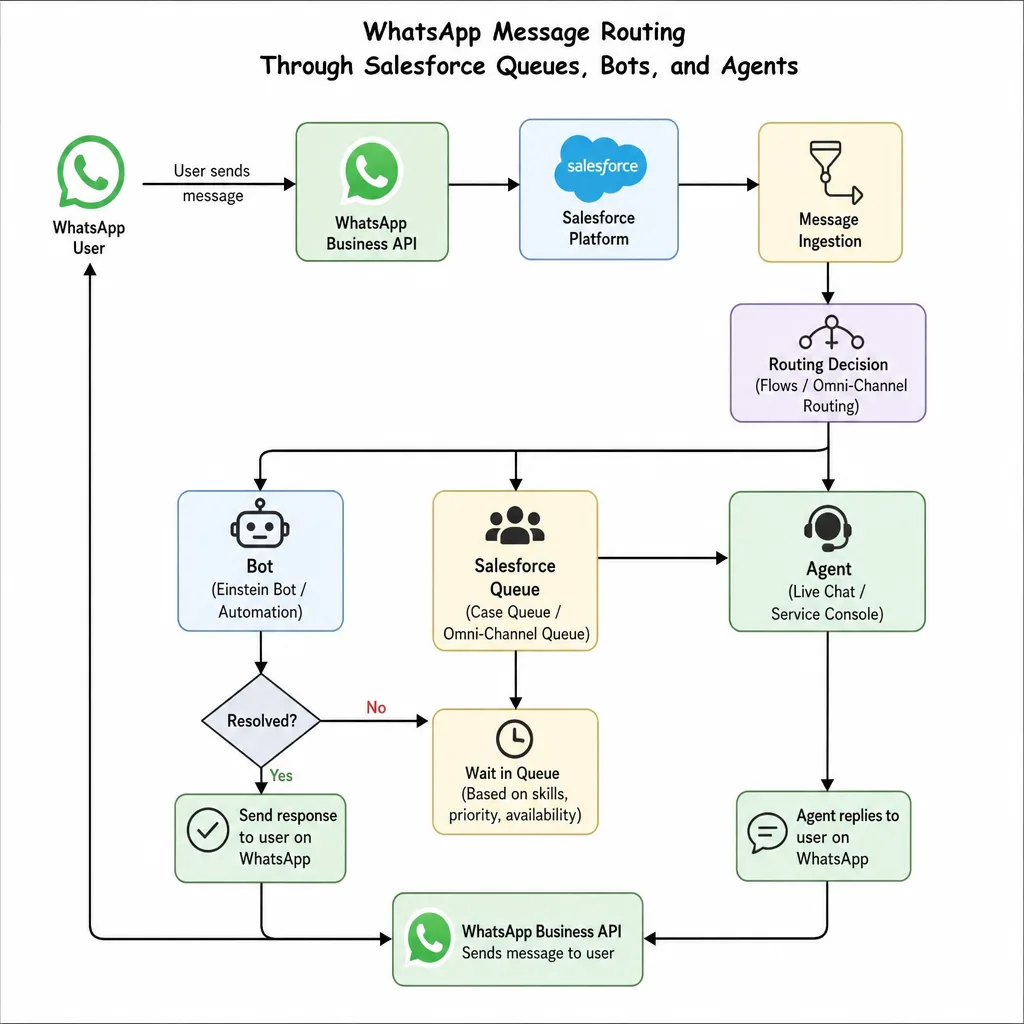
- Configure routing and record matching. Route service messages to queues or Omni-Channel flows; assign new leads to the right owners; set matching rules so an inbound number attaches to the existing Lead, Contact, or Case instead of creating duplicates.
- Create and approve templates. Write the notifications and follow-ups you plan to send, submit them for Meta approval, and merge Salesforce fields for personalization.
- Wire up consent and compliance. Record opt-in status on Salesforce records, honor opt-outs automatically, and block automation from messaging anyone without consent.
- Test real scenarios, then go live. Pilot with one team: inbound replies, template sends, media, transfers, error states, and reporting — then roll out.
Step 3 in depth: connecting, route by route
- AppExchange app (WatBox): install the managed package from AppExchange, open the app’s setup tab, and click through Meta’s embedded signup — a guided pop-up where you log into Meta, pick or create your WABA, and register the number. Salesforce permissions are handled by the package; no code, typically 15–30 minutes.
- Native Unified WhatsApp: in Setup → Messaging, create an Enhanced WhatsApp channel, run the same Meta embedded signup, then assign the channel to your Omni-Channel configuration and messaging users. Requires qualifying editions and Messaging licenses before the option appears.
- Custom API: register the number on the WhatsApp Business Platform Cloud API, stand up a webhook receiver for inbound messages and status events, and build the Salesforce side (Named Credentials, Apex callouts or middleware, plus retry and deduplication logic). Plan for monitoring from day one.
Step 4 in depth: routing patterns that work
Routing is where integrations succeed or stall. The patterns that hold up in production: service traffic goes to a queue or an Omni-Channel flow (route by language, product line, or tier, with a fallback queue for anything unmatched); sales traffic creates or updates a Lead and assigns by territory or round-robin; bots handle the predictable first mile — order status, intake questions — and hand off to a human with full context when the conversation turns complex.
Shortcut: with a verified WABA in hand, WatBox’s Salesforce WhatsApp app completes steps 3–6 through a guided, no-code setup — most teams send their first WhatsApp message from Salesforce the same day — with omnichannel routing across WhatsApp, SMS, and calls, support for Meta’s WhatsApp coexistence, WhatsApp Calls, voice notes with recordings, and AI-generated conversation summaries on the Salesforce record.
“For our sales teams it delivers the capability they have long wanted: message a customer directly from the record and see the full conversation history there, build templates easily, and send at scale through campaigns. For our technical team it delivers what matters most — the conversation data stays in one system. I would recommend WatBox to any organization, and I see them as a partner rather than a vendor.”
— Brian Osam-Duodu, Vice President of Technology
What does Salesforce WhatsApp integration cost?
Three cost layers apply to every route. First, Meta’s message fees: since July 2025 WhatsApp charges per delivered template message rather than per 24-hour conversation, with rates set by the recipient’s country and the template category. Second, the integration layer: native requires qualifying editions plus messaging add-ons; AppExchange apps are per-user subscriptions (WatBox offers a 15-day free trial); custom builds trade subscriptions for engineering time. Third, your team’s setup effort, from an afternoon (managed app) to a project plan (custom).
| Template category | What it covers | How Meta charges |
|---|---|---|
| Marketing | Promotions, offers, re-engagement | Per delivered message — the highest-priced category |
| Utility | Order updates, reminders, account notices | Per delivered message — lower rate; free when sent inside an open customer-service window |
| Authentication | One-time passcodes | Per delivered message — low, regionally priced |
| Service (replies) | Responding to customer-initiated chats | Free — customer-service conversations carry no Meta fee |
Exact per-message rates vary widely by country, so check Meta’s current rate card for your markets before forecasting. The practical takeaway: customer-initiated service costs you nothing at the Meta layer, utility messaging is affordable, and marketing sends deserve targeting discipline — both for cost and for your number’s quality rating.
Compliance rules that apply to every route
- Opt-in is mandatory. You need the customer’s consent before business-initiated messages; store it on the Salesforce record so automation can check it.
- The 24-hour window. You can reply freely for 24 hours after a customer’s last message; outside it, only approved templates can be sent.
- Template review. Meta approves template content and category; promotional text in a utility template gets rejected or reclassified.
- Quality ratings are real. Spam reports and blocks lower your number’s quality rating and can throttle your messaging limits — relevance protects deliverability.
- Regulated data: if GDPR, HIPAA, or industry rules apply to you, involve legal before automating sensitive content into chat.
Frequently asked questions
Can Salesforce integrate with WhatsApp?
Yes — through the WhatsApp Business Platform, via the native Unified WhatsApp channel, AppExchange apps such as WatBox, or a custom API build. All three send and receive WhatsApp messages against Salesforce records.
Is WhatsApp integration with Salesforce free?
No route is entirely free: native needs qualifying editions and add-ons, apps charge per-user subscriptions (WatBox offers a 15-day free trial), and Meta charges per-conversation fees on every route.
Do I need a developer?
Not for native or AppExchange routes — both are no-code admin setups via Meta’s embedded signup. Only custom API builds need engineering.
How long does it take?
With a verified WABA, an AppExchange app can be live in under a day. Meta business verification beforehand typically takes a few days; custom builds take weeks.
Can I use my existing WhatsApp number?
Only after migrating it to the WhatsApp Business Platform — a number lives on one WhatsApp product at a time. Many teams simply dedicate a new number; Meta’s coexistence features are gradually easing this for some setups.
Does the integration support WhatsApp Calls and voice notes?
That depends on the layer. The native channel focuses on messaging. Apps like WatBox additionally support WhatsApp Calls, voice notes, call and voice-note recordings, and AI-generated summaries of conversations — all logged on the Salesforce record, with omnichannel routing across WhatsApp, SMS, and telephony.
Where do conversations appear in Salesforce?
Native: in the Salesforce messaging console with Omni-Channel routing. WatBox and similar apps: directly on the Lead, Contact, Account, Case, or custom-object record, so the history lives where your team already works.
Next steps
If you’re evaluating routes, start by confirming your Meta verification and number strategy — they gate every option. For a deeper look at the decision itself, read why teams connect WhatsApp with Salesforce and our AppExchange evaluation checklist. And if the managed-app route fits, you can see your own Salesforce org sending WhatsApp messages this week: explore WatBox’s WhatsApp app or start the 15-day trial.