

Salesforce Service Cloud + WhatsApp: Cases, Queues, and SLAs Without a Custom Build
If you're running customer support on the Salesforce Service Cloud, you've already solved the hard operational problems: how to route work to the right agent, how to measure SLAs, how to give supervisors visibility across all open cases. You've built queues, configured Omni-Channel, and trained your team to work from the Service Console.
Then someone asks: "Can we add WhatsApp?"
And the answer, without the right tool, gets complicated fast. WhatsApp doesn't slot naturally into Service Cloud. It lives on phones. It doesn't create Cases. It doesn't feed into Omni-Channel routing. Your SLA timers have no idea a customer is waiting. And your CSAT surveys never include the conversations that happened over WhatsApp because they're not in Salesforce at all.
WatBox fixes this , without a development project. Here's exactly what a properly integrated WhatsApp channel looks like inside Salesforce Service Cloud.
How WhatsApp Becomes a Native Service Cloud Channel
The goal isn't to add WhatsApp as a side tool your agents check separately. The goal is to make WhatsApp indistinguishable , from an operational standpoint , from email or web chat. The same routing. The same Case creation. The same SLA tracking. The same reporting.
WatBox achieves this by connecting your WhatsApp Business number directly to Salesforce Service Cloud through the WhatsApp Business API, and mapping every inbound message to the Service Cloud data model your team already uses.
Here's how it works end to end.
Step 1: Inbound WhatsApp Message → Salesforce Case Created Automatically
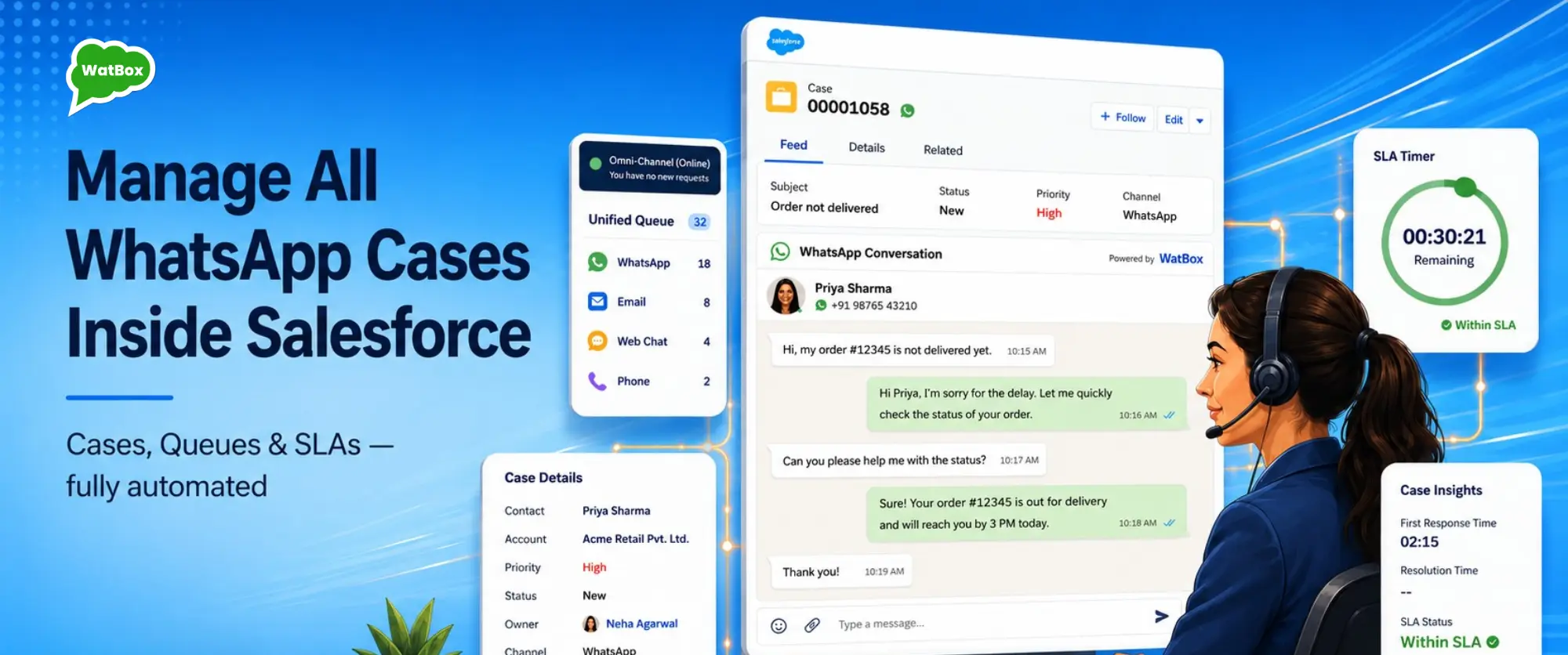
When a customer sends a message to your WhatsApp Business number, WatBox receives it and creates a Salesforce Case automatically. The first message the customer sends becomes the Case Subject and Description.
If the customer's phone number already exists in Salesforce as a Contact, the Case is linked to that Contact record immediately. Your agents see the customer's name, account history, and previous case history before they type a single word. If it's a new number, WatBox creates the Contact record first, then creates and links the Case.
Every subsequent message in that conversation is appended to the same Case , not as a separate record, but as part of the ongoing thread. Agents see the full conversation in context, the same way they'd see an email thread on a Case.
Step 2: Omni-Channel Routes the Case to the Right Queue
Once the Case is created, your existing Salesforce Omni-Channel configuration takes over. The WhatsApp Case follows the same assignment rules as any other Case type , routed based on queue, skill, availability, or any custom routing logic you've already built.
This is the detail that matters most for service operations: WhatsApp doesn't require a separate routing system. It uses the Salesforce infrastructure you've already invested in configuring.
If you have different support tiers , Tier 1 for general inquiries, Tier 2 for technical issues, a dedicated team for high-value accounts , WhatsApp cases flow into those queues based on whatever routing criteria you apply. You can even configure a dedicated queue specifically for WhatsApp cases if you want to staff it separately during high-volume periods.
Agents receive the WhatsApp Case as a work item in their Omni-Channel widget, exactly like an email case or a web chat session. They don't need to learn a new tool. They don't need to switch applications. They work from the Service Console, exactly as they do today.
→ See how WatBox handles Salesforce object configuration and routing →
Step 3: SLA Timers Run from the First Message
One of the biggest operational gaps when WhatsApp isn't integrated with Service Cloud is SLA blindness. Your team might have a 4-hour first response SLA on email cases. But if WhatsApp messages don't create Cases, there's no SLA timer, no escalation, no visibility for supervisors when a customer has been waiting for three hours.
With WatBox, the Case is created the moment the first WhatsApp message arrives. That means your SLA clock starts immediately , the same way it does for email and web cases. If the Case breaches SLA, escalation rules fire. Supervisors see it in their dashboards. Nothing falls through the cracks.
This also means your SLA reporting is complete. When your service director asks what percentage of cases met first response SLA last month, the answer includes WhatsApp. Not just email. Not just web chat. Every channel your customers use.
Step 4: Agents Reply From the Service Console
When an agent accepts the WhatsApp Case from their Omni-Channel queue, they see the full conversation thread directly in the Service Console , alongside the customer's Contact record, case history, and any open Opportunities or Account details.
They reply by typing in the message window inside Salesforce. The message is sent to the customer's WhatsApp. The customer sees it as a regular WhatsApp message. The agent never needs to open a phone, a browser, or any application outside Salesforce.
All agent replies are logged as activities on the Case automatically. Supervisors can see every message sent and received, by which agent, at what time. Quality assurance reviews happen inside Salesforce. Coaching conversations are based on actual message transcripts.
For complex cases, agents can escalate internally , tagging a colleague, assigning the case to a specialist queue, or adding a note , using standard Salesforce Case management tools. The WhatsApp conversation stays attached to the Case throughout.
→ See how WatBox supports WhatsApp inside Salesforce Sales Cloud too →
Step 5: After 24 Hours, a New Case Is Created for Continued Conversations
WhatsApp Business API has a 24-hour session window: after 24 hours of inactivity, a new conversation session begins. WatBox handles this gracefully inside Salesforce , when a customer messages again after the 24-hour window, a new Case is created in Salesforce and linked to the same Contact.
This means your Case records accurately reflect distinct service interactions, not one infinitely long thread. Agents have the context of previous cases (via the Contact's case history) while working on the current one with a clean, focused view.
Automation: Reduce Agent Load Without Reducing Service Quality
For service teams handling high WhatsApp message volumes, automation becomes essential. WatBox enables Salesforce Flow-based automation that reduces repetitive agent tasks without compromising the customer experience.
- Automated acknowledgement messages. The moment a Case is created, a Salesforce Flow triggers a WhatsApp template message to the customer confirming receipt, providing a case reference number, and setting expected response times.
- FAQ handling with Einstein AI. For service operations facing high volumes of routine queries , order status, appointment confirmation, account balance, policy details , WatBox integrates with Salesforce Einstein AI to automatically handle messages that match known patterns.
- Case status updates. When a Case status changes , from "In Progress" to "Awaiting Customer Response" or "Resolved" , a Salesforce Flow triggers an automatic WhatsApp message to the customer.
- CSAT surveys via WhatsApp. After Case closure, trigger an automated WhatsApp survey message. Response rates on WhatsApp surveys are significantly higher than email surveys.
→ See how Einstein AI + WhatsApp handles high-volume service operations →
What Supervisors and Service Leaders See
None of this matters operationally unless service leaders have the visibility they need to manage performance. With WatBox, WhatsApp becomes a fully reportable channel inside Salesforce.
Your existing Service Cloud reports and dashboards include WhatsApp cases automatically. First response time, resolution time, case volume by channel, agent handle time, SLA compliance , all of it includes WhatsApp data. You're not building new reports. You're reading existing ones that are finally complete.
For real-time monitoring, the Service Console supervisor view shows the status of all open WhatsApp cases, which agents are handling them, and which have been waiting the longest , exactly the same view supervisors use for email and chat.
What the Setup Looks Like
Salesforce admins rightly want to understand what they're installing before they go live. WatBox is AppExchange-listed and Salesforce-native. Installation goes through the standard Salesforce package install process.
Configuration involves connecting your WhatsApp Business Account to WatBox, mapping your WhatsApp numbers to the relevant Salesforce objects and queues, and configuring any automated Flow triggers you want to run. The WatBox team handles onboarding , most customers are live within days of install.
No Apex code. No custom middleware. No separate database. Your Salesforce admin configures it through familiar Salesforce settings.
Start Your Free Trial
If you're running Salesforce Service Cloud and your customers expect WhatsApp as a support channel, WatBox is the straightest line from where you are to a fully operational, SLA-tracked, Omni-Channel-routed WhatsApp service desk , inside the Salesforce environment your team already knows.
👉 Start your 15-day free trial , no credit card required →
👉 Book a demo with the WatBox team →
Questions about your specific Service Cloud setup? Contact the team at sales@watbox.ai or +91 797 583 6644.
